
Get hands-on help with Vocordia
Employees can follow this guide step by step - or open a ticket and wait for support.
Or they can finish inside the app.
Vocordia gives voice and cursor guidance directly inside the tools they already use - just say what they need, and Vocordia shows them where to click, step by step, without leaving the window.
How to Create a Dropdown List in Excel
A dropdown list helps people pick from approved options and reduces typos. In Excel, you usually build one with Data Validation pointing at a range or a table column.
What you need first
Decide where the allowed values will live (a hidden column is fine) and which cell should show the dropdown (often a single cell or a whole column of cells).
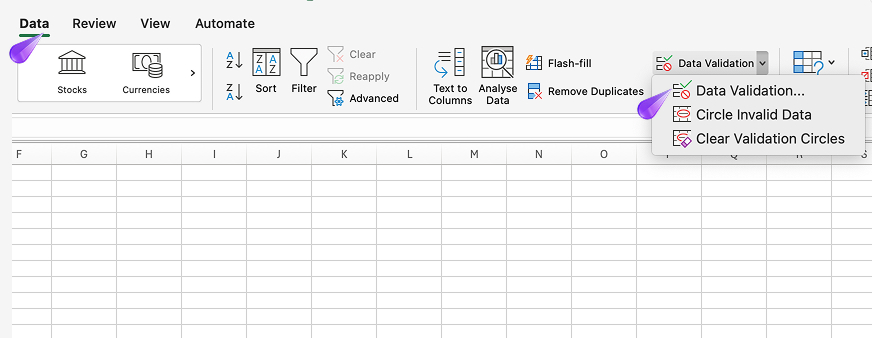
Create a simple dropdown from a range
- Select the cell(s) where you want the dropdown.
- Go to Data → Data Validation (sometimes labeled Data Validation…).
- Under Allow, choose List.
- For Source, select the range that contains your list values, or type values separated by commas (for short static lists).
- Click OK.
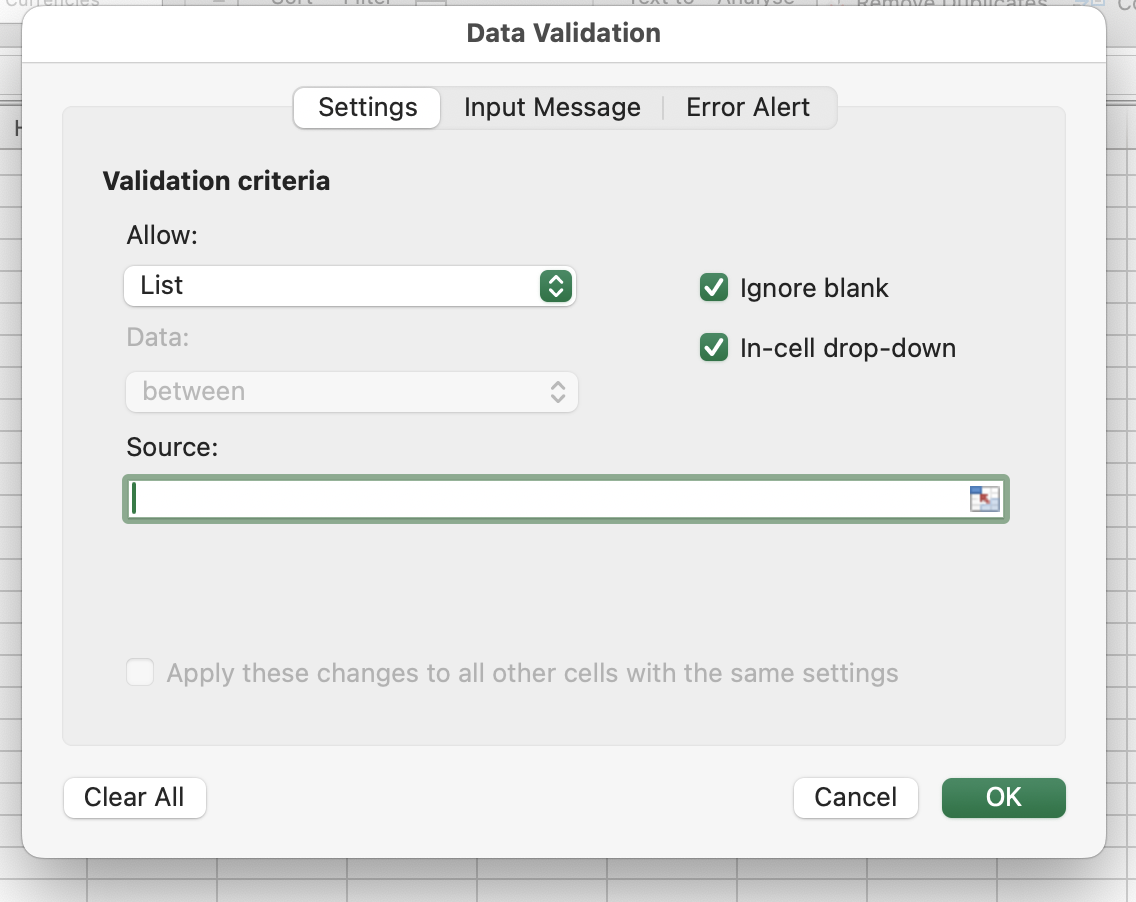
Use a Table so new rows auto-expand the list
- Put your list in a column and convert it to a Table (Insert → Table).
- In Data Validation, set the source to the table column (Excel will use a structured reference like
Table1[Column1]). - When you add items at the bottom of the table column, the dropdown updates automatically.
Optional: named ranges
For cleaner formulas, define a Named Range for your list and use =YourName as the Data Validation source.
Try it faster with guidance
Skip hunting through ribbons and menus—let Vocordia guide you through it with voice and on-screen cursor guidance so you can finish the steps without tab-switching.
Still routing this to IT or HR?
There's a faster way.
Next time, employees can ask by voice and get step-by-step guidance inside the app - no manual, no ticket.