
Get hands-on help with Vocordia
Employees can follow this guide step by step - or open a ticket and wait for support.
Or they can finish inside the app.
Vocordia gives voice and cursor guidance directly inside the tools they already use - just say what they need, and Vocordia shows them where to click, step by step, without leaving the window.
How to Find Duplicates in Excel
It is usually safer to find duplicates before removing them. Highlighting repeats helps you confirm what Excel considers a duplicate for your chosen rules.
Highlight duplicates with Conditional Formatting
- Select the range you want to check (a single column is common).
- Go to Home → Conditional Formatting → Highlight Cells Rules → Duplicate Values.
- Choose a style and click OK.
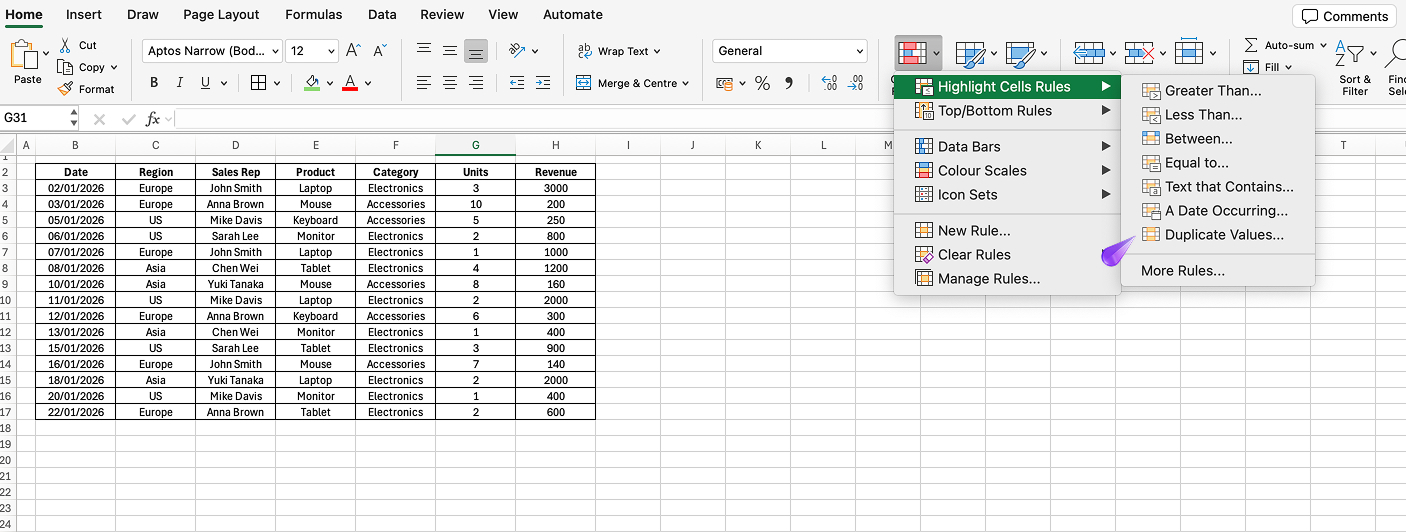
Find duplicates across multiple columns
For row-level duplicates, create a helper column that concatenates key fields (or use a formula that counts repeated combinations), then apply formatting or filter.
Use a formula to flag duplicates
Functions like COUNTIF can mark rows where values appear more than once. For example, in a helper column, count how often a key appears in the full range and filter where the count is greater than one.
Microsoft 365 shortcut
In newer Excel, you can sometimes leverage dynamic array functions to list or filter duplicates non-destructively, depending on your layout.
Try it faster with guidance
Skip the trial-and-error-let Vocordia guide you through it with voice and on-screen guidance so you can spot duplicates without guessing the right range.
Still routing this to IT or HR?
There's a faster way.
Next time, employees can ask by voice and get step-by-step guidance inside the app - no manual, no ticket.