
Get hands-on help with Vocordia
Employees can follow this guide step by step - or open a ticket and wait for support.
Or they can finish inside the app.
Vocordia gives voice and cursor guidance directly inside the tools they already use - just say what they need, and Vocordia shows them where to click, step by step, without leaving the window.
How to Lock Cells in Excel
Excel locks cells by default, but protection only takes effect after you protect the sheet. Most workflows unlock specific input cells first, then protect everything else.
Understand the default
All cells start with the Locked checkbox enabled, but locking only matters after you enable sheet protection. “Locked” really means “protected when the sheet is protected.”
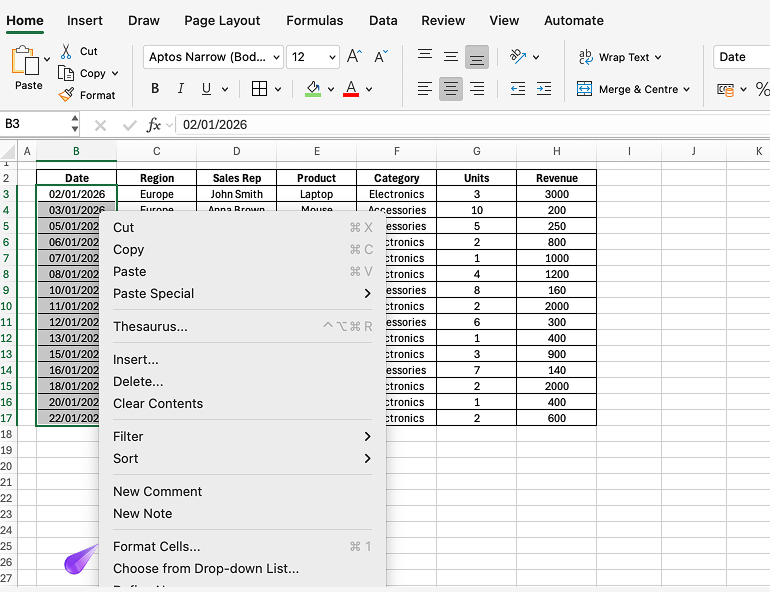
Choose which cells users can edit
- Select the cells that should remain editable.
- Right-click → Format Cells → Protection.
- Uncheck Locked for those cells, then click OK.
Protect the worksheet
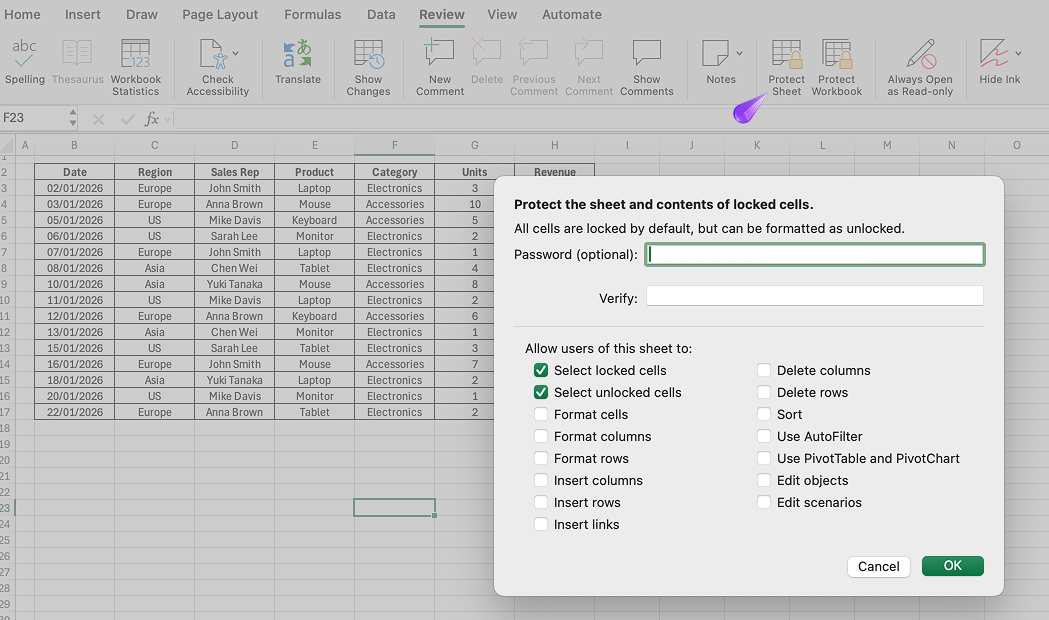
- Go to Review → Protect Sheet (or Protect Workbook for structure).
- Set a password if needed and choose which actions users are allowed to perform (like selecting unlocked cells).
- Click OK.
Optional: hide formulas
If you need to hide formula logic, combine protection settings with hidden/uneditable formula cells and carefully test what users can still select or copy.
Try it faster with guidance
Skip the manual steps—let Vocordia guide you through it with voice and cursor guidance so you can protect the right cells without locking yourself out.
Still routing this to IT or HR?
There's a faster way.
Next time, employees can ask by voice and get step-by-step guidance inside the app - no manual, no ticket.