
Get hands-on help with Vocordia
Employees can follow this guide step by step - or open a ticket and wait for support.
Or they can finish inside the app.
Vocordia gives voice and cursor guidance directly inside the tools they already use - just say what they need, and Vocordia shows them where to click, step by step, without leaving the window.
How to Remove Duplicates in Excel
Excel can collapse repeated rows so you keep one unique record. The built-in Remove Duplicates tool is the fastest path for most worksheets.
Before you start
Duplicates are judged by the columns you select. If you only select one column, Excel may remove rows that differ elsewhere—so choose columns carefully. Consider copying your sheet first.
Remove duplicates from a table or range
- Click anywhere inside your data range or Excel Table.
- Go to Data → Remove Duplicates.
- Check the columns that should define a “duplicate” (for example, email + date).
- Click OK. Excel reports how many duplicates were removed and how many unique values remain.
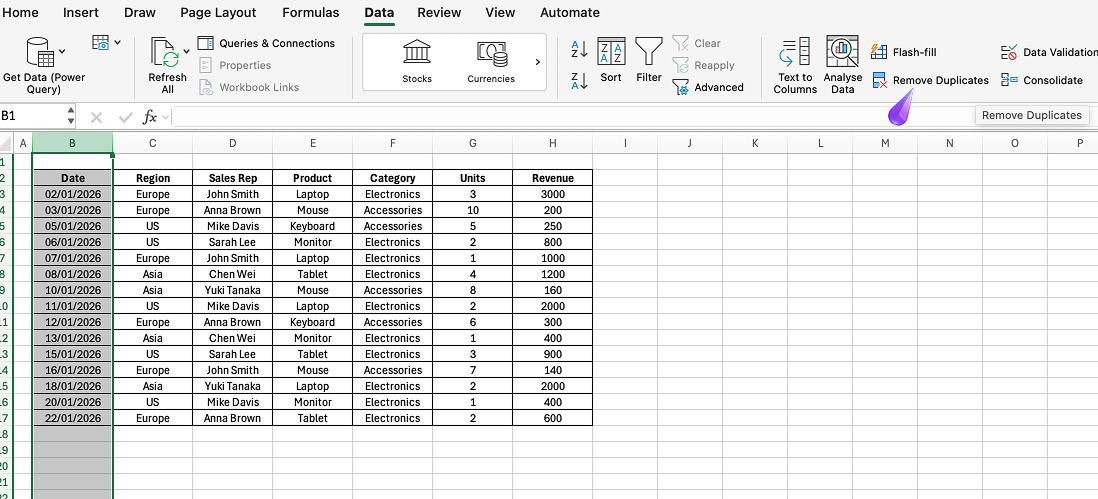
Keep the first occurrence
Remove Duplicates typically keeps the first row it finds for each unique combination and deletes later matching rows—use sorting first if you need a specific row to “win.”
Alternative: UNIQUE (Microsoft 365)
If you prefer non-destructive results, functions like UNIQUE can output distinct values to a new range without altering the source data.
Try it faster with guidance
Skip the manual steps—let Vocordia guide you through it with voice and step-by-step cursor guidance so you can clean the sheet confidently.
Still routing this to IT or HR?
There's a faster way.
Next time, employees can ask by voice and get step-by-step guidance inside the app - no manual, no ticket.